Immersive English (on Steam) is an application that helps you learn English while playing video games.
With Immersive English, you can pause the game at any time and look up words that appear in games with online dictionaries. The words you look up will be collected in a wordbook. You can also record game videos for learning.
System Requirements
The recommended hardware for running Immersive English is:
- OS: Windows 10 / 11 64-bit
- Memory: 4 GB RAM
- Processor: Intel Core i5-8400 / AMD Ryzen 5 1600 (6-core)
- Graphics: NVIDIA GTX 1050 Ti / AMD Radeon RX 470
- Storage: 5 GB available space
If video capture is enabled, a modern graphics card capable of H264 video encoding is required, and approximately 80-100 MB of disk space will be used per minute for video buffer.
If video capture is not enabled, Immersive English requires very little storage (less than 1 GB).
Old CPUs with integrated graphics (such as Intel 1135G7 and AMD 4600G) may work, but they are more likely to experience performance issues and dropped frames during video recording.
If you find it not compatible with your game or hardware, you can get a refund within two weeks of purchase and with less than two hours of playtime according to Steam Refunds Policy.
Choose the Game
If you want an immersive experience while learning English, there are several types of games that are especially helpful.
- Role-playing games often feature rich storylines, voice acting, and extensive dialogue, which can greatly enhance your vocabulary and listening skills.
- Strategy games require you to read in-game texts, follow complex instructions, and often learn new terms related to history, diplomacy, and management.
- Additionally, visual novel games are another choice, as they focus heavily on reading and character interaction, helping you practice reading comprehension.
These game types offer an immersive learning experience that makes language practice both fun and engaging.
If the game has neither subtitles nor any recognizable text, Immersive English will not function properly.
Start the Game
The first step is to start the game process.
It's important to understand the three common display modes in PC games: Borderless Windowed, Windowed, and Fullscreen.
- Borderless Windowed Mode lets your game run in a window that covers the whole screen but without borders or title bars. You can easily switch between your game and other programs, and there’s no delay when using Alt+Tab. However, performance might be slightly lower compared to fullscreen.
- Windowed Mode keeps the game inside a regular window with borders and a title bar. You can freely move it, making it convenient if you want to multitask. But some games might not run as smoothly, and it can be less immersive.
- Fullscreen Mode makes your game take over the entire display. This usually delivers the best performance and lowest input lag, since the game can directly control your graphics card. The downside is that switching to other programs can take longer, and Alt+Tab might cause your game to minimize.
All three modes are supported by Immersive English.
Borderless windowed mode is recommended for most modern games. The support for full screen mode is experimental and should only be used for older games.
Start Immersive English
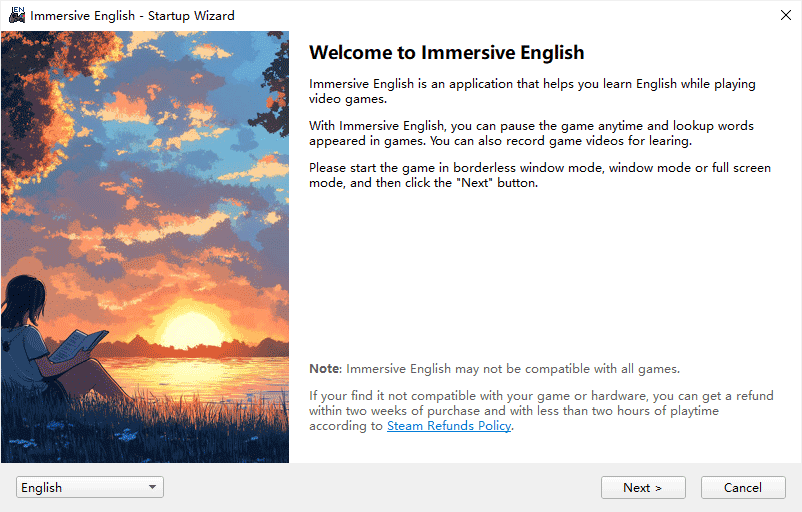
1. The Welcome Page
Start Immersive English from your Steam library. Click next when you see the startup wizard.
2. Select Game Process
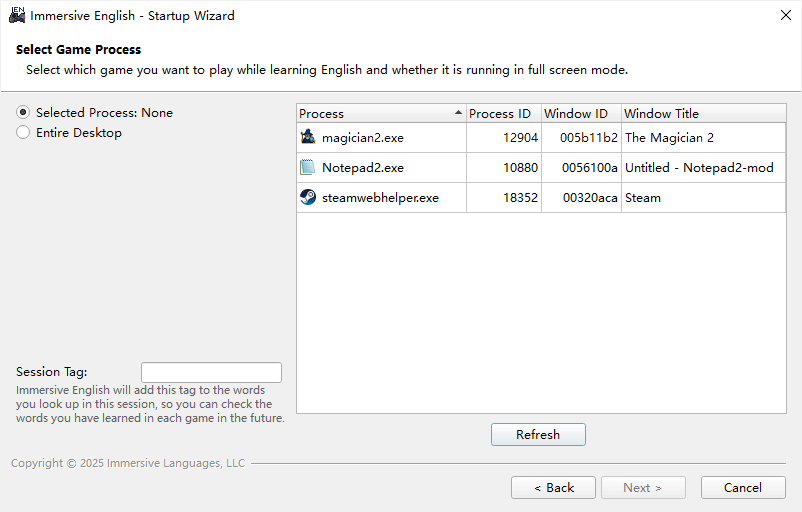
On this page, you will need to select which game you want to play while learning English.
Visible windows with icons in the taskbar will be listed, and you need to choose which one is the game process.
When the game process is selected, its icon and executable file name will appear on the left.
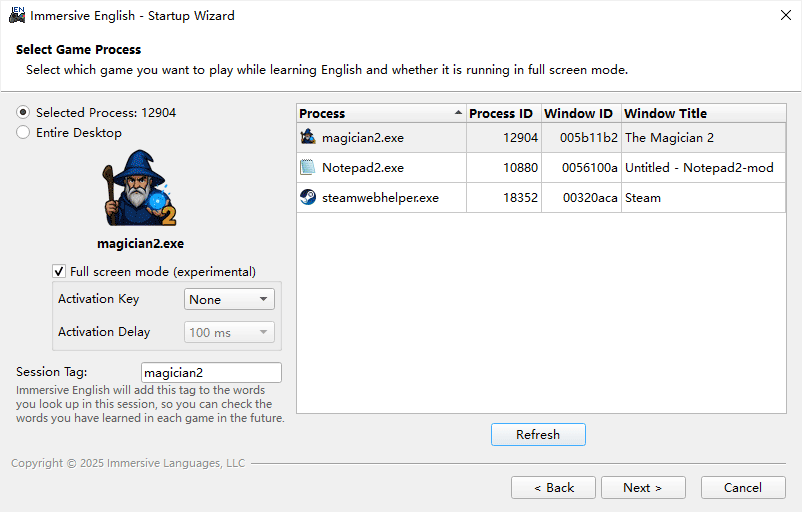
Borderless windowed mode is recommended for most modern games and hardware. However, some old games can only work in full-screen mode. In this case, you need to check the "Full screen mode (experimental)" option.
When switching from a fullscreen game to the desktop, or back to a fullscreen game, the monitor may go black for 1-2 seconds. If the game resolution is the same as the desktop resolution, the switching time might be reduced.
If you want to send a key automatically after switching back to the game, you can set the Activation Key option.
3. Select Video Encoder
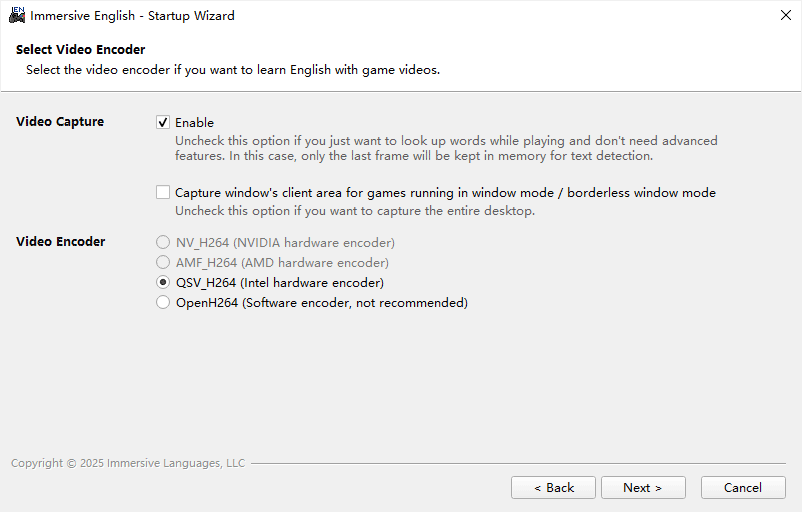
On this page, you will need to decide whether video capture is to be enabled.
AAA role-playing games feature captivating stories, rich voice acting, and extensive dialogues, making them excellent resources for learning English. With Immersive English, you can export specified game video clips to your local disk for further study and practice.
Video capture can be disabled, if you just want to use this software as a lightweight game dictionary.
4. Set Pause Options
On this page, you can customize the hotkey and pause mode.
By default, when the Pause/Break key is pressed, Immersive English will try to grab focus, and the game process will pause itself. You can also try to freeze the game process if the default pause mode does not work.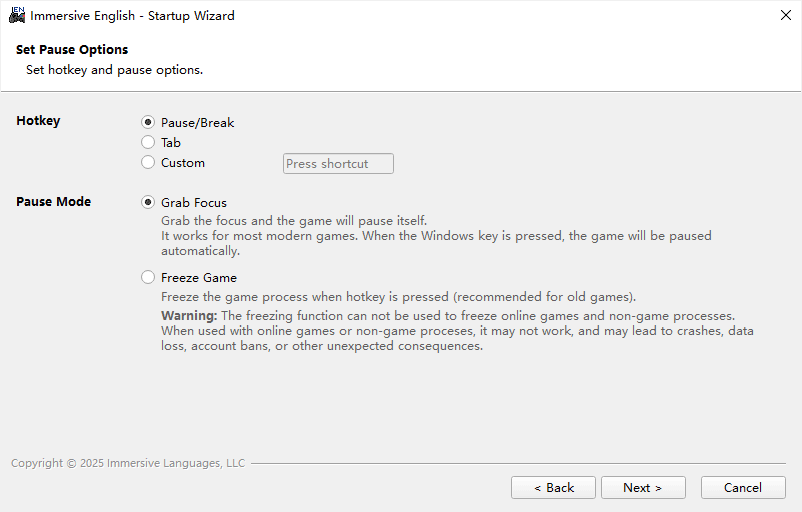
Technically speaking, when a process is "frozen", all of its threads are suspended by the Windows operating system, and it cannot process any user input.
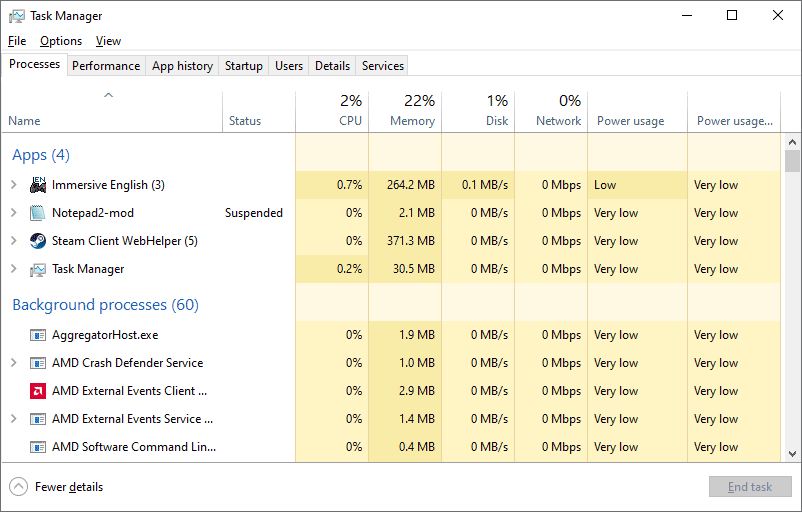
You can check whether a process is suspended in the Windows Task Manager:
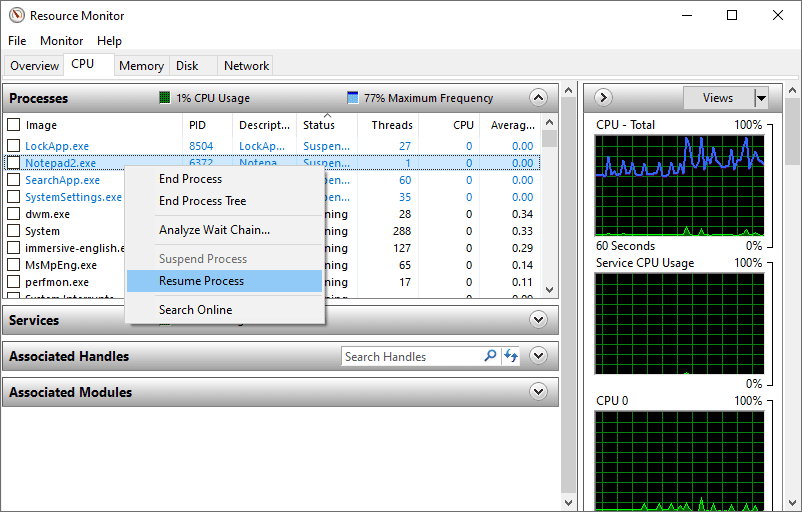
You can resume a process with the Windows Resource Monitor:
There is a utility program resume-process.exe shipped together with immersive-english.exe, which you can use to resume a process:
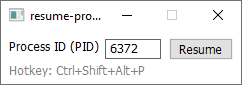
Freezing a process can be dangerous sometimes. If you are not sure, you should always use the "Grab Focus" mode to pause games.
It only freezes the client, while the server and other players keep going. This often leads to disconnection or missed events, and anti-cheat systems may detect your suspicious behavior.
It may not work, and may lead to crashes, data loss, account bans, or other unexpected consequences.
If a game window is suspended in fullscreen mode, the game window will block almost all desktop interactions until the process is resumed.
The correct way to fix this is to use a keyboard shortcut to resume the process. Immersive English handles this automatically. You can also use resume-process.exe or any other script to do this.
5. Set Dictionary
In Immersive English, you can configure multiple online dictionaries and quickly switch between them using a dropdown list when looking up words.
The dictionary configured in the startup wizard is the default dictionary (the first item in the dropdown list).
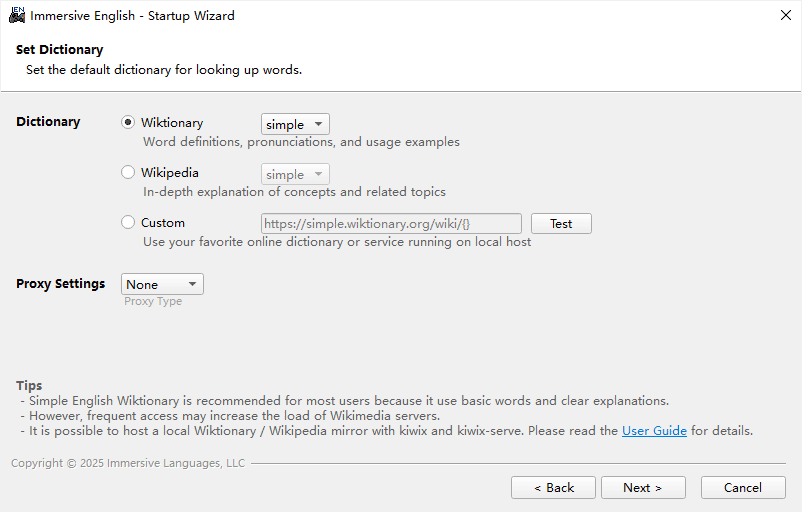
To host a local Wiktionary mirror with kiwix, follow the steps below:
- Download the Kiwix App for Windows from https://kiwix.org/
- Extract the zip file (kiwix-desktop_windows_x64_2.x.y.zip)
- Open kiwix-desktop.exe. On the left panel, select "English" and then search for "Simple English"
- Download "Wiktionary in Simple English". The file will be put into C:\Users\{user}\AppData\Roaming\kiwix-desktop
- Download the Kiwix Server for Windows from https://kiwix.org/
- Extract kiwix-server.exe from the zip file into C:\Users\{user}\AppData\Roaming\kiwix-desktop
- Open a command prompt window (cmd) and cd into C:\Users\{user}\AppData\Roaming\kiwix-desktop
- Execute: kiwix-serve.exe -i 127.0.0.1 -p 8000 wiktionary_en_simple_all_nopic_2025-10.zim
Now you can test the local mirror by visiting http://127.0.0.1:8000
6. The Ready Page
When everything is ready, you can close the startup wizard by clicking Next.
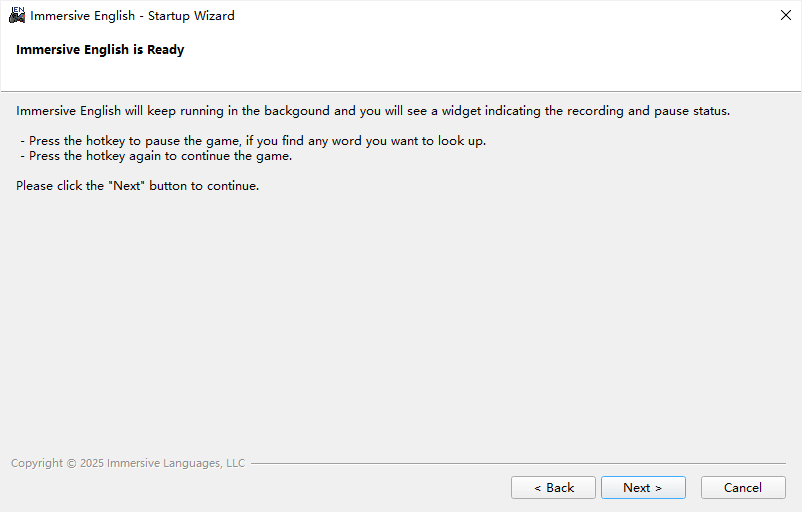
After the startup wizard is closed, a small widget window will appear, indicating that Immersive English is running in the background:

You can now switch back to the game window and start playing.
Pause the Game
When you see a word that you are not familiar with, press the hotkey (Pause/Break by default).
The game will be paused, and recognized words will be marked.

You can look up a word with a click. This will open the dictionary panel of the main window.
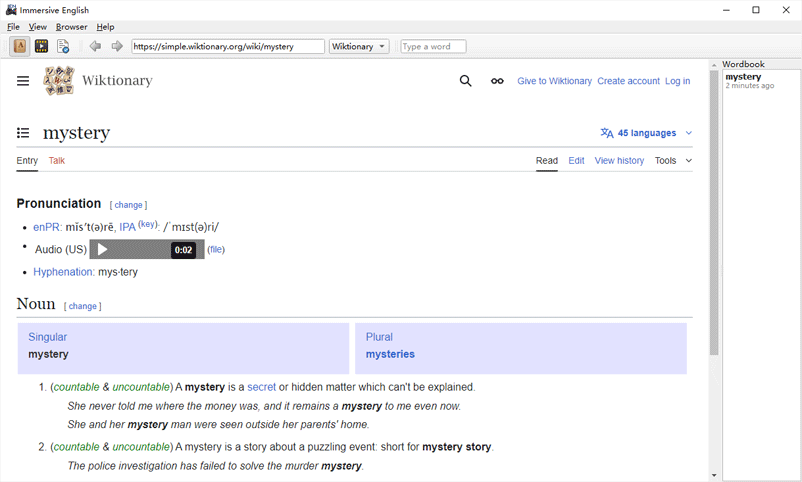
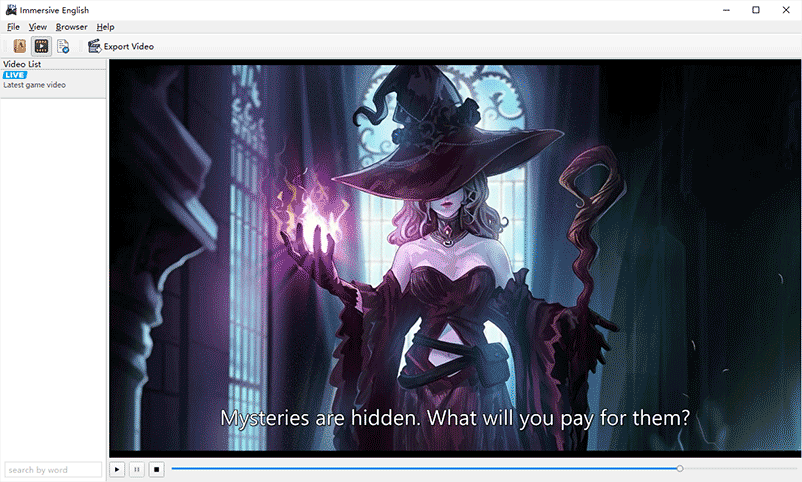
There are three panels in the main window. By clicking the movie icon in the toolbar, you can open the video panel.
If video capture is enabled, you will be able to view recorded game video.
Export Game Video
If you have just watched a long conversation with full audio and subtitles, and there are several words you are interested in, it's a good idea to save the video clip to your computer for learning.
Click the "Export Video" button in the toolbar, and the video export dialog will show up.
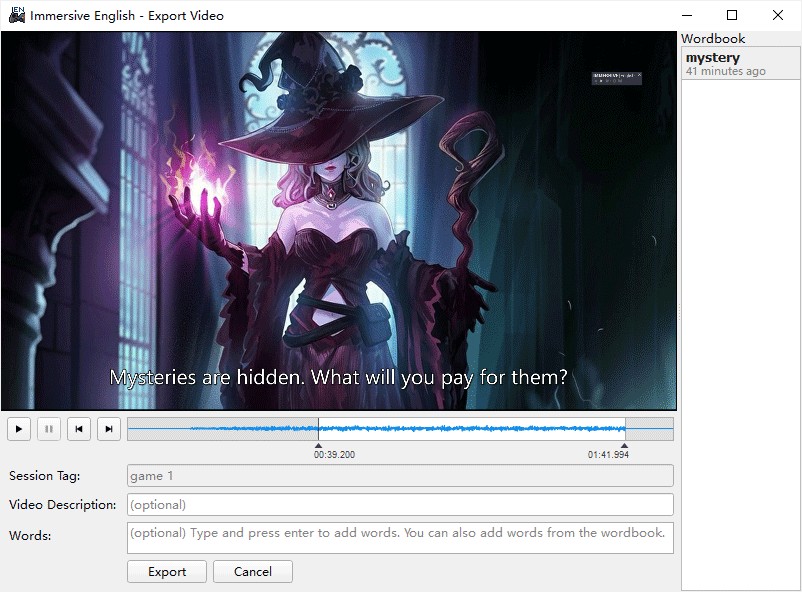
Set the export range, the optional video description, the optional word list, and then press "Export". The video clip will be saved to your local hard disk. It will also appear in the video list, below the "LIVE" video.
Resume the Game
After you have looked up the words you are interested in, you can resume the game by pressing the hotkey (Pause/Break by default) again.
You can pause and resume the game multiple times as you wish.
View Session Report
If the game process exits, Immersive English will stop the current session and show the session report automatically.
You can also stop the current session by clicking the close button on the widget window.
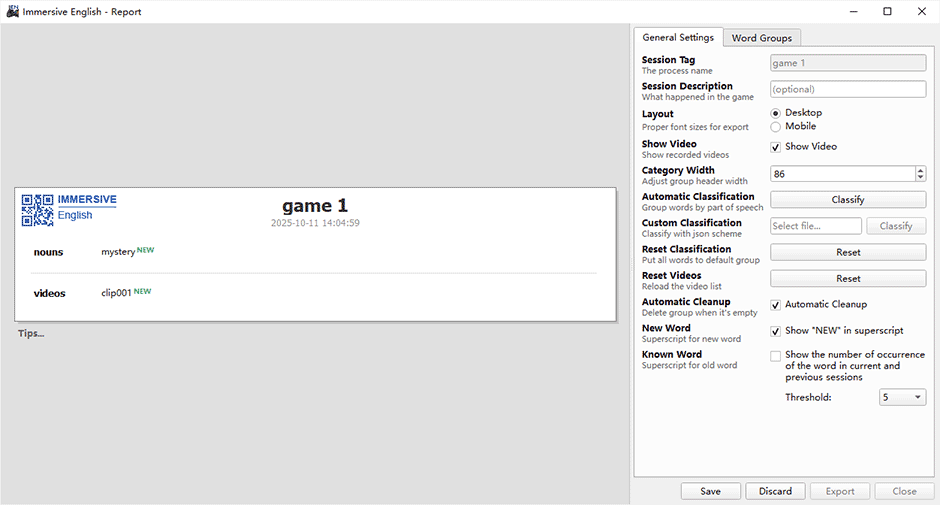
The words looked up in this session will be grouped by part of speech by default.
If the default classification is not correct, you can edit a word's classification by dragging and dropping. You can also add words or delete words before saving the session report.
You can classify words with a custom ruleset that match your game better. An example is shown below:
{
  "category": ["units", "buildings", "resources"],
  "rule": {
    "units": [
      "crossbow", "pike", "catapult", "horseman", "swordsman", "scout", "knight",
      "berserker", "infantry division", "infantry corps", "cavalry", "artillery", "cannon", "rifled canon"
    ],
    "buildings": [
      "armory", "barrack", "forge", "granary", "harbor", "monastery", "monument", "stable", "workshop",
      "arsenal", "army base", "navy yard", "motte-and-bailey castle"
    ],
    "resources": [
      "cattle", "lumber mill", "marsh", "pasture", "plantation", "trading post", "manufactory"
    ]
  }
}
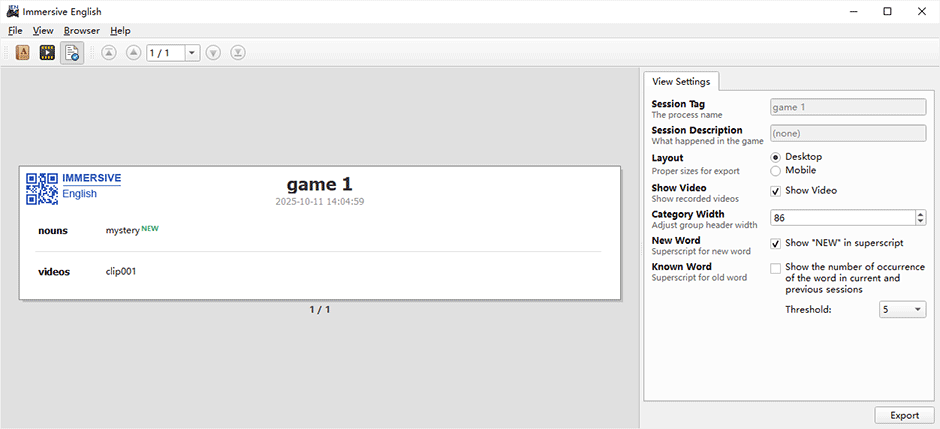
Press "Save" and the session will be saved to your local hard disk.
Press "Export" if you want to save the session card on the left into a png file.
Review the Words Learned
The next time you start Immersive English, you will see saved sessions in the main window's session panel.
You can use this panel to review the words you've learned in different games.